ai canvas / expand image
Expand a photo past its edges, or widen it to fit.
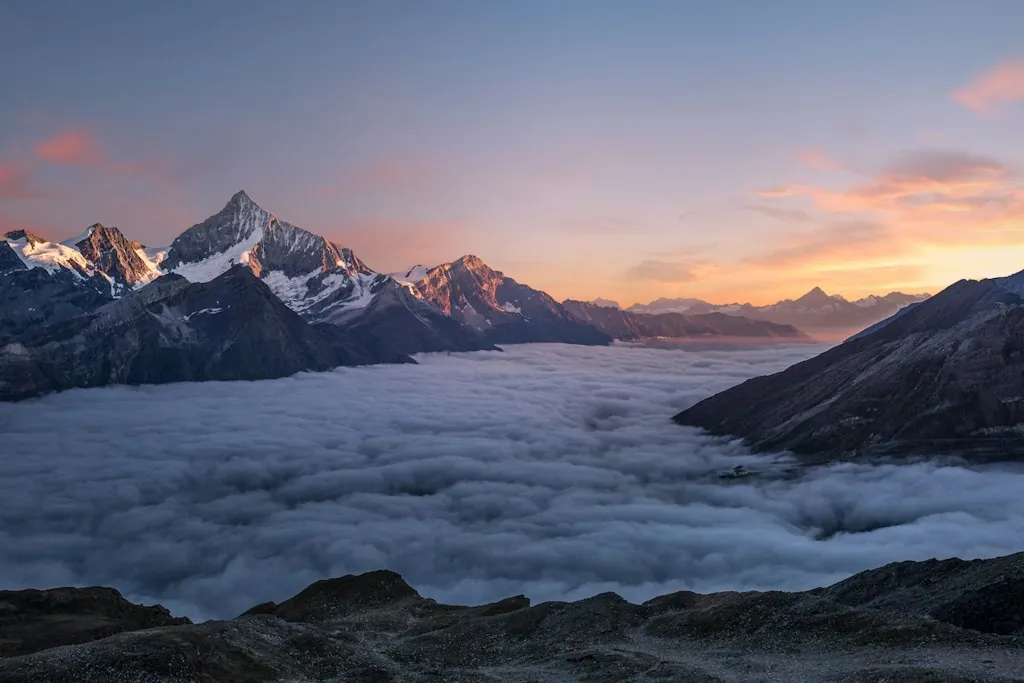
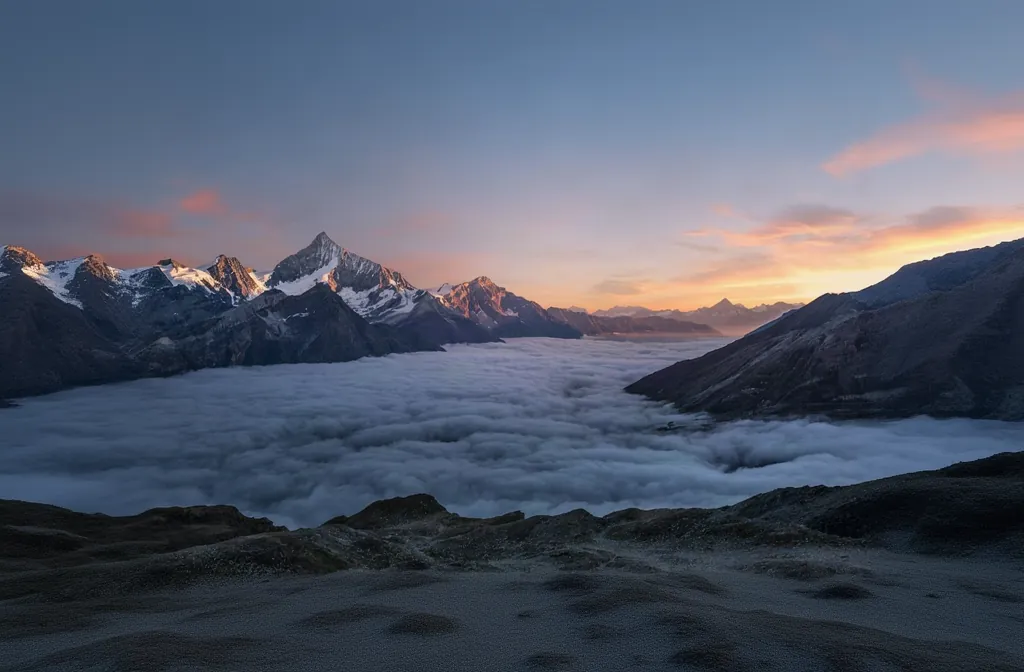
Run Expand image to zoom out photo shots or widen them to a new shape. The AI image extender paints new surroundings that match the scene, so a tight crop becomes a banner.
before
after
● inside yantra
What you get.
Zoom out
Pull the camera back and the app paints in what was outside the frame.
Change the shape
Widen a portrait photo to 16:9 or a square to a tall story, without cropping.
Uncrop image
Recover room around a subject that was framed too tight.
Ready for every format
Make the banner, the post and the story from one photo, side by side on the board.
● how it works
How to expand an image
Add the photo
Upload the photo to a Canvas board.
Run Expand image
Select it, run Expand image and choose a zoom or a new shape.
Download it
Download the wider photo, or keep editing it on the board.
● try asking
Start with one prompt.
Pick one and it lands in the composer, ready to send.
● questions
Asked often.
How do I expand an image with AI?
Add the photo to a Canvas board, select it and run Expand image. Choose how far to zoom out or the new shape, and the extended picture appears next to it.
Can I uncrop an image to a different aspect ratio?
Yes. Pick a new shape, such as 16:9 or 9:16, and the app paints in the missing sides instead of cropping the photo.
Is the new area made up?
Yes. The AI image extender paints new surroundings that fit the scene. It does not recover what the camera actually saw.
● more on canvas
More one-click apps.
- AI canvas
Generate, direct and edit image, video and audio on one board.
- AI image upscaler
Upscale a photo or clip 2x or 4x, with new fine detail.
- AI product photography
Turn a plain product photo into a clean studio shot.
- Magic eraser
Remove an object, person or text from a photo, gap filled in.